

Horizon Sound & Vision

Sign in

Forgot password?

Click points around the boundary

Job record

Horizon Sound & Vision

Settings

Make the planner work the way your team works.

When customers need to pay their invoices

Choose the payment terms used for new invoice drafts. You can choose different terms on an individual draft. Saved drafts and issued invoices keep their own terms.

On completion uses the job date. Day-based terms count from the invoice date. Due dates are shown on each invoice so you can check them before issuing.

Your booking defaults at a glance

Limits HQ uses when planning and rearranging jobs. Saving settings does not move existing jobs.

Booking rules

Limits for automatic timeline moves

HQ uses these settings to decide how far it can move a job earlier or later on the timeline when finding a booking slot or making room for another job. Each customer’s agreed arrival window also limits where their job can move.

Find best slot shows proposed moves for you to approve with the booking. Saving these settings does not move any existing jobs.

Working hours & arrival limits
Advanced booking rules
Manual bookings & first calls

Keeps jobs at the working-day start fixed while HQ rearranges other bookings.

Saved planner profiles

Named combinations of planner preferences. Profiles also include the default job duration; review the booking summary before saving.

Appearance & map

Choose the planner design and the starting map view.

Automatic uses the theme's draft colour. Booked jobs keep their field agent's colour.

Sound & motion

Set the sound and animation preferences applied when you save these planner settings. The top-bar gear also offers immediate controls for this device.

Pricing boundaries

Drag boundary points to refine a region, or Subdivide to add more points. Drag its centre handle to move the whole region. Hidden boundaries do not affect prices. Save to apply; Undo or Discard changes to recover.

Blue £79 · Green £89 · Red £99 in the remaining mapped area. Boundaries affect future price suggestions; agreed invoice charges stay fixed.

Booking confirmations

The starting message for a new booking. You can still edit each customer's message before sending.

Fields you can use in this message

{greeting}, {customer_name}, {engineer}, {date}, {arrival}, {job_type}, {quote}, {signature}

Example confirmation

Example only · nothing is sent from this preview.

Job confirmation customisation

Name your own job types. Enter a name in plain text, such as TV installation or Blinds fitting. These choices belong to this company and appear in the job-type menu when booking. Use up to 40 distinct names, with 60 characters per name.

Set the price text to insert. Enter an amount such as £95.00, a range such as £125–£175, or Price to be agreed. Use call-out price inserts {callout}, which HQ replaces with the price band for that booking’s location. The example preview uses the blue band.

Connect it to your message. Keep {job_type} and {quote} in the template above. HQ replaces them with the selected name and price. Any words about parts or VAT in the template still apply to every type: edit that wording to match your business and check the preview to avoid saying it twice.

Adjust one booking when needed. The booking form fills its confirmation price from this list. Staff can edit that price or the email before saving. Choosing another job type reloads its default price; a manually edited email stays manual.

Save settings to apply changes. Adding, renaming or removing a type does not change existing bookings, saved emails, products or invoice charges. Discard changes restores your saved list. Nothing is emailed from these settings.

Add at least one job type before saving.

Invoice emails

Default wording for invoice emails and resends. The invoice PDF is attached by the normal sending workflow.

Fields you can use in this message

{greeting}, {customer_name}, {invoice_number}, {total}, {amount_due}, {due_date}, {company_name}, {payment_details}, {payment_terms}, {signature}

Example invoice email

Example only · nothing is issued or sent.

Email sign-offs

The closing lines used in customer emails. The app chooses a sign-off for the signed-in user.

Job types and their default price text are managed under Booking confirmations → Job confirmation customisation.

Restore defaults

Preview your changes, then save to apply them.

No unsaved changes.

Enter a full UK postcode

Schedule

Right-click to book · drag jobs to move · drag edges to resize.
Where the jobs are

Job colours follow field agent · strength follows distance from base
Basingstoke and surrounding roads with directional colour regions
Drag with left or middle button · Ctrl+scroll to zoom
No booked jobs in this period
© OpenStreetMap contributors
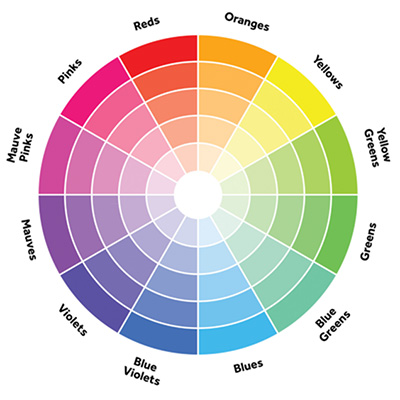
Supplied colour wheel with five shades per colour and greens on the right
Colour wheel reference
Click to enlarge · greens on the right
Plus parts & VAT · agreed prices can be changed per job

Dashed boundaries traced from the photo are approximate. Winchester & Southampton: red £99 band.

Customers

Contacts, job history and invoices.

Invoices

Call-out charge, parts and payment status.

Drafts are reviewed before sending
Prices exclude VAT. The invoice keeps the agreed customer charge.

See completed jobs, payments received and money still owed

All saved records · jobs, invoice balances and recorded payments

Your business details, email connections and backups

Manage the company details used on invoices, check connections and review backups.

Business details shown on customer invoices

Standard call-out prices before parts and VAT

Plus parts and VAT · negotiable per job.

What office users and drivers can access

Dean & Les · their own jobs and completion details.

Office users · scheduling, customer records and invoicing.

Shared base: Basingstoke · access shown as a concept.

Driver day preview

Add customer

Create new job

The message is queued when the job is saved. Sending needs the email service configured.